
Designing document templates has traditionally been a slow, technical process.
You sketch a layout, write HTML code, define variables, test the data structure, tweak the layout again, export a PDF, and repeat. For many developers and teams, this process can take hours — sometimes days — before a template becomes reusable.
But what if you could skip most of that process and start with a simple prompt?
With DocMiral’s Smart AI Builder, you can describe the document you want in plain language, and the system will generate a complete template layout — including fields, structure, and design.
This article walks through how that works using a real example.
The Problem: Document Templates Are Harder Than They Look
When teams need automated documents — invoices, reports, contracts, meeting minutes — they usually face two challenges:
- Designing a professional layout
- Defining the dynamic data structure
A document template isn’t just static HTML. It needs:
- dynamic fields
- lists and tables
- reusable structure
- consistent layout
- PDF-friendly formatting
For example, a board meeting minutes document might include:
- meeting metadata
- attendees and absentees
- agenda items
- discussion notes
- action items
Each of those pieces needs its own structure.
Traditionally, developers had to build this manually.
DocMiral approaches this differently.
The Idea: Describe the Document Instead of Coding It
With the Smart Builder, you simply describe the document you want.
For example:
“Create a professional board meeting minutes document template with a clean corporate layout. Include a header with company name, meeting title, date, time, location, and chairperson, followed by sections for attendees and absentees. Add an agenda and discussion section where each topic includes presenter, notes, and decisions. Include an action items table with task, responsible person, deadline, and status. The design should be simple, well-structured, A4 friendly, and use subtle separators and clear hierarchy so it looks professional when exported to PDF.”
This single prompt contains everything the system needs to generate the template.
Step 1 — Writing the Prompt
In the Smart Builder interface, the user first selects a document category and then describes the document they want.
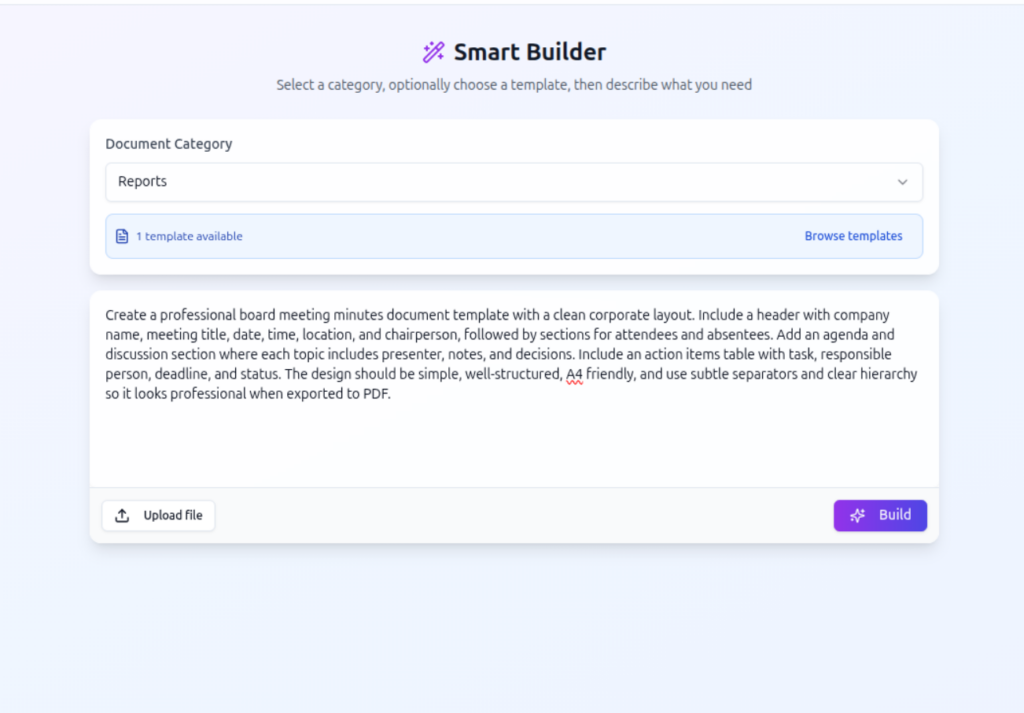
The description doesn’t need to be technical. It just needs to explain:
- what sections the document has
- what information each section contains
- the overall style or layout
For example:
- professional
- minimal
- A4 friendly
- clear hierarchy
- corporate style
These cues help the AI understand how to design the template.
Step 2 — Understanding the Request
Once the prompt is submitted, DocMiral first determines what the user wants to do.
Is the user:
- creating a template
- filling a template
- customizing an existing template
- doing both creation and filling?

In this case, the system detects:
Create Template
That means it will design a new template from scratch based on the description.
This is part of DocMiral’s AI pipeline that interprets user intent before any generation begins.
Step 3 — Planning the Template Structure
After understanding the request, the system analyzes the prompt and extracts the document structure.
For our meeting minutes example, the AI identifies fields such as:
- company name
- meeting title
- date and time
- meeting location
- chairperson
- attendees
- absentees
- agenda items
- discussion notes
- action items

The system also decides what kind of structure each field should use.
For example:
| Section | Data Structure |
|---|---|
| Attendees | List |
| Agenda topics | List |
| Discussion notes | List |
| Action items | Table |
This step transforms a natural language description into a structured template schema.
Step 4 — Generating the Template Fields
Next, the system generates the variables that will appear in the template.
For example:
- header fields
- lists of agenda topics
- tables for action items
- metadata fields for meeting details

DocMiral templates support multiple variable types including:
- structured MiniApp data
- typed input fields
- flexible Jinja2 variables
These variables allow documents to adapt to different data while keeping the layout consistent.
Want to know more about DocMiral variables system?
Step 5 — Generating the Document Layout
After defining the data structure, the AI generates the actual document layout.
The layout is created using:
- HTML
- TailwindCSS
- DocMiral template variables
The design follows the constraints described in the prompt:
- A4 page format
- clear hierarchy
- subtle separators
- professional corporate layout
The result is a ready-to-use template.
The Result: A Fully Functional Template
Once the pipeline finishes, DocMiral produces a working document template that can immediately be used to generate documents.
You can then open it in the document editor, fill the fields, and export the final document.
When the template is opened in the editor, users can:
- fill fields using structured forms
- preview the document in real time
- export to PDF
- modify the design with AI
Why This Workflow Matters
The Smart Builder workflow changes how templates are created.
Instead of designing first and structuring data later, the system does both simultaneously.
That means users can move from:
idea → working template
in seconds.
This approach is especially useful for:
Developers
who want to quickly create document generation templates for their applications.
Startups
who need invoices, reports, or contracts without building complex template systems.
Teams
who regularly generate structured documents like meeting notes or reports.
A Real Example: Meeting Minutes
Using the earlier prompt, DocMiral automatically creates a document with:
- a clean header for meeting metadata
- attendee and absentee lists
- structured agenda sections
- discussion notes
- a table for action items
The layout is already optimized for PDF export, which means it prints cleanly on A4 pages without manual adjustments.
Learn More About the Smart Builder
If you’d like to explore the feature in detail, see the official guide:
Using the Smart AI Builder
https://docmiral.com/features/templates/create-pdf/using-smart-ai-builder
The guide explains how the system turns prompts into templates and how to use the builder effectively.
Conclusion
AI is changing how documents are created.
Instead of spending hours designing templates and defining fields manually, you can now describe what you want and let the system generate the structure for you.
DocMiral’s Smart Builder bridges the gap between natural language and document automation — allowing anyone to turn an idea into a working document template.
And as templates become easier to create, document workflows become easier to automate.


Leave a Reply