The 2026 No-Code and Agentic AI Boom: A New Era for Document Generation
As we enter 2026, the landscape of no-code platforms is undergoing a major transformation fueled by agentic AI capabilities. No longer limited to simple automation akin to Zapier’s triggers and actions, the new standard is prompt-to-document creation — an intelligent, dynamic process that generates complex documents directly from natural language inputs.
This shift is revolutionizing how freelancers, startups, and professionals produce critical paperwork. Instead of assembling templates manually or writing code, users now rely on AI to understand their intent and deliver smart, fully formatted PDFs in moments.
Introducing DocMiral’s Smart Builder: The Five-Layer Pipeline to Smart PDFs
At the forefront of this innovation is DocMiral’s Smart Builder, a no-code document generation engine built around a sophisticated five-layer pipeline:
Intent Detection: AI interprets the user’s prompt to understand the document type and purpose.
Field Extraction: Core data fields required for the document are identified and structured.
Variable Formatting: Data fields are formatted with context-aware styles such as date formats, currencies, and clause-specific variables.
AI-Driven Design with Tailwind CSS: An embedded AI applies responsive Tailwind CSS styles to craft professional layouts automatically.
Finalization and Data Fill: The document template is finalized and populated with the extracted and formatted variables, ready for download or further workflow integration.
Walkthrough: Generating a Freelance Contract from a Brief
Let’s consider a practical example: You want to generate a freelance contract from a simple brief prompt like “Generate a freelance contract from this brief.” Here’s how the Smart Builder handles it seamlessly:
Prompt Input: Enter the brief describing key contract terms such as project scope, payment terms, and deadlines.
File Attachments for Reference: You can attach sample documents or previous contracts for the AI to learn style and tone.
Template Cloning and Adaptation: The engine clones an existing freelance contract template and adapts it dynamically based on your prompt and attachments.
Review and Download: You receive a smart template and a document created based on that template ready to get output PDF contract, fully styled and containing all necessary clauses, which you can review, edit, or send for electronic signing.
No-Code Advantages Over Traditional HTML/Jinja2 Coding
No-code document generation with DocMiral’s Smart Builder offers several advantages over manual template coding using HTML or Jinja2:
Ease of Use: No need to know markup languages or templating syntax — intuitive prompt inputs are enough.
Speed: Documents are created in real-time with AI assistance, eliminating hours spent hand-coding templates.
Flexibility: AI adapts templates on the fly to fit varied user requirements, versus static coded templates requiring developer updates.
Design Automation: Styling is intelligent and responsive thanks to Tailwind CSS integration, without manual CSS tweaking.
Workflow Integration: Generated documents can seamlessly feed into e-signature apps, APIs, and automation without technical overhead.
Get Started with DocMiral’s Smart Builder Today
In 2026, prompt-to-document is setting a new productivity standard. DocMiral’s Smart Builder puts the power of AI-driven no-code document generation at your fingertips, making professional PDF creation accessible, efficient, and intelligent.
Explore the Smart Builder to create smart PDFs with minimal effort. Visit DocMiral to start your journey into the future of document automation.
Resumes in 2026 are no longer just documents. They are structured data pipelines.
Recruiters, ATS systems, and AI screening tools expect resumes that are clean, semantic, and machine-readable. If your CV is not structured properly, it does not matter how good your experience is, it simply gets filtered out.
This is where AI-powered resume generation changes everything. Instead of manually rewriting your CV, you can now upload your existing document, let AI parse it, and generate a fully optimized version instantly.
What Changed in Resume Standards in 2026?
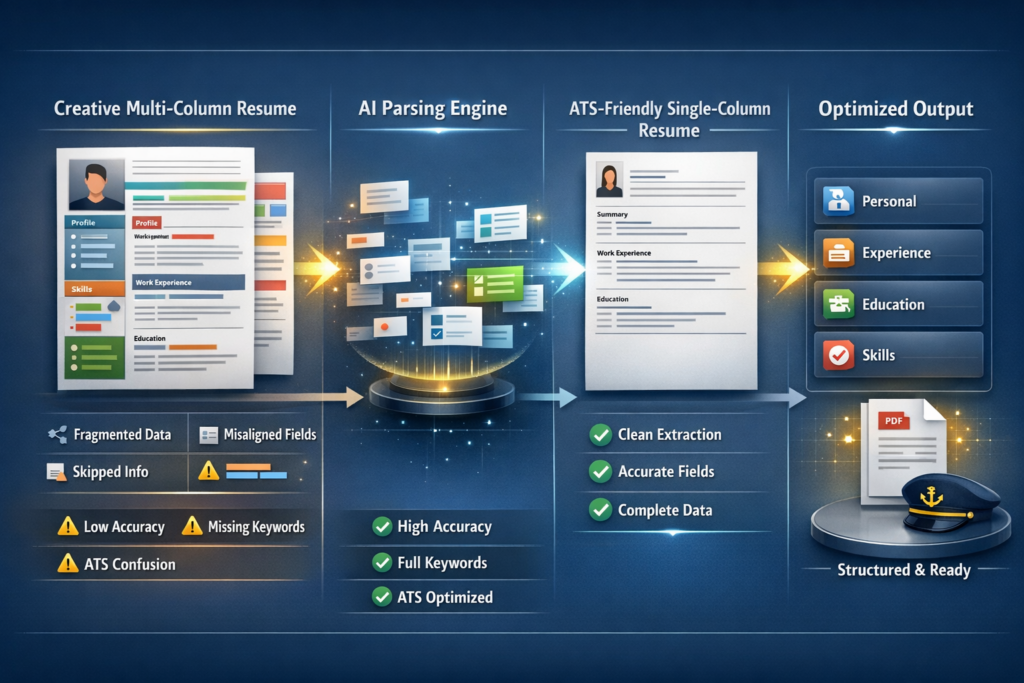
Resume expectations have evolved significantly. The old approach of creative layouts and multi-column designs is no longer effective.
Modern systems prioritize clarity, structure, and semantic meaning.
1. Skills-First Formatting
Recruiters and AI systems now scan for skills before anything else. Your resume needs to clearly expose capabilities in a structured way.
2. Semantic Keyword Matching
ATS systems no longer rely on exact keywords. They understand context. That means your resume needs to be structured, not just filled with buzzwords.
3. ATS 2.0 Parsing Challenges
Modern parsers extract meaning from sections like experience, education, and skills. Poor formatting breaks this extraction.
4. Single-Column Still Wins
Despite all design trends, single-column layouts remain the most reliable format for ATS compatibility.
The New Workflow: From CV Upload to Optimized Resume
Instead of rewriting your resume manually, the modern workflow looks like this:
Upload your existing CV as a PDF
AI extracts structured data from it
Data is mapped into predefined sections
A clean template is auto-filled
You refine it using AI or manual edits
Export as a polished PDF
This is not just convenience. It is a shift from document editing to data-driven generation.
How CV Parsing Works Under the Hood
When you upload a CV, AI systems like TARS analyze the document and extract structured information.
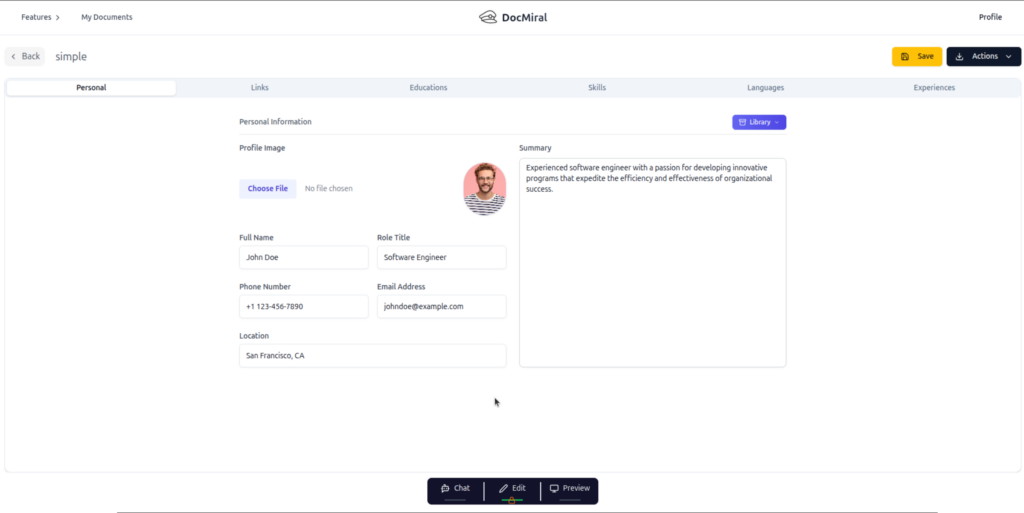
In DocMiral, this maps directly into MiniApps.
MiniApps are predefined structured sections such as:
Personal information
Work experiences
Education
Skills
Projects and certificates
This structure is critical because templates rely on predictable data formats to generate consistent output
Step-by-Step: Build Your AI Resume Generator
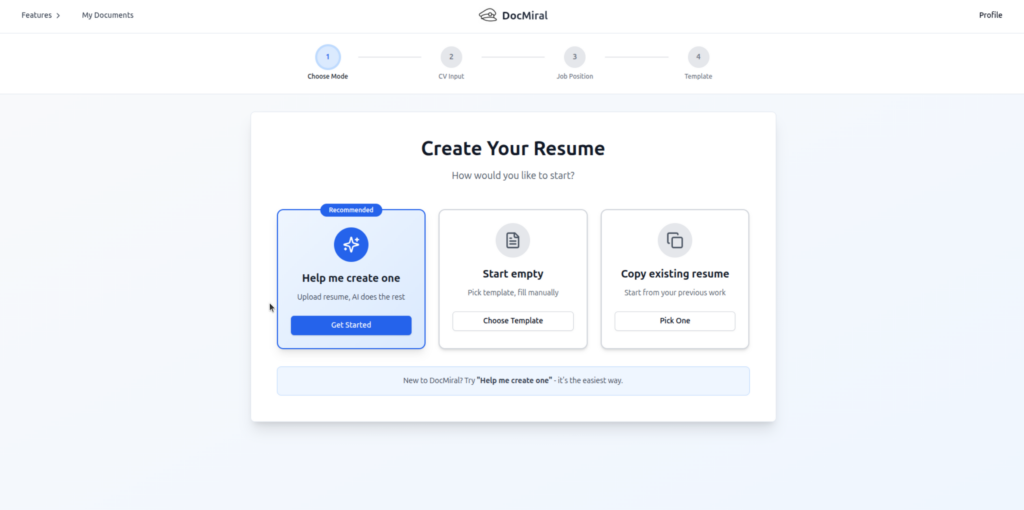
Step 1: Open the Free ATS Resume App
Start with the built-in tool at /apps/resumes.
This app allows you to upload your existing CV and immediately generate a new one without creating an account.
Step 2: Upload Your Old CV
Upload your PDF resume. The system extracts content including job history, education, and skills.
The parsing endpoint converts your CV into structured JSON aligned with resume MiniApps.
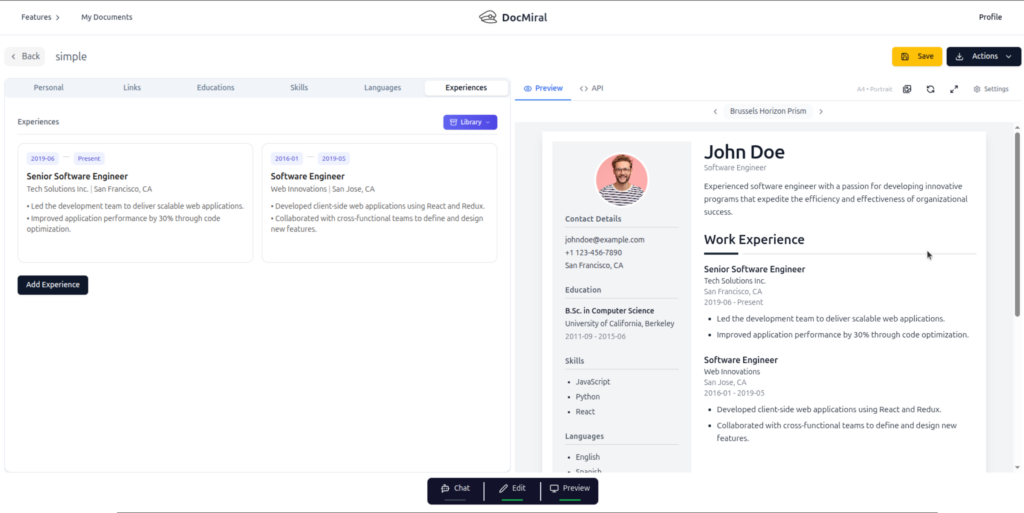
Step 3: Auto-Populate a Modern Template
Once parsed, the data is injected into a clean, ATS-friendly template.
This includes:
Single-column layout
Clear section hierarchy
Structured bullet points
Optimized spacing for readability
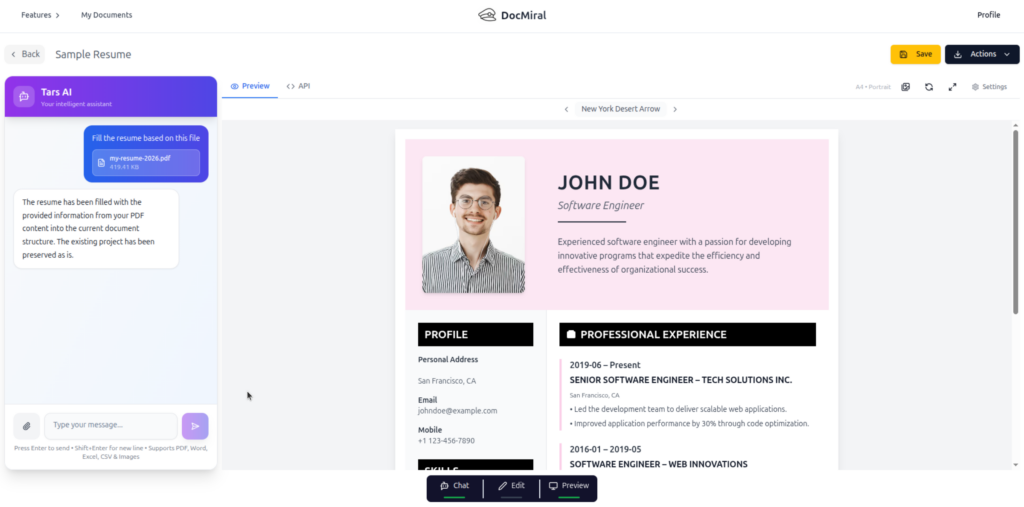
Step 4: Refine Using TARS AI
You can now chat with TARS directly inside the document builder.
Examples:
“Improve my experience descriptions”
“Add more impact to my bullet points”
“Tailor this resume for a backend engineering role”
TARS updates only the relevant sections without breaking the structure.
Step 5: Live Preview and Adjust
The live preview ensures that every change is reflected instantly.
You can tweak spacing, sections, or content without losing structure.
Step 6: Export Your Resume
Finally, export your resume as a PDF.
The output is clean, consistent, and optimized for both humans and machines.
Why This Beats Manual Resume Builders
Traditional resume builders treat resumes like forms. This approach treats them like systems.
No repetitive data entry
No formatting guesswork
No broken layouts
No rewriting from scratch
Instead, you work with structured data that can be reused, refined, and regenerated.
Reuse Your Data with Buckets
One of the biggest advantages is reusability.
Once your resume data is structured, you can store it in Buckets.
This allows you to:
Reuse experience across multiple resumes
Generate role-specific versions instantly
Maintain consistency across documents
This turns your resume into a living data source, not a static file.
Final Thoughts
Building an AI resume generator in 2026 is no longer complex.
The combination of CV parsing, structured MiniApps, and dynamic templates makes it accessible to both users and developers.
If you are still editing resumes manually, you are working against the system.
The future is structured, automated, and AI-assisted.
Try It Yourself
You can try the free ATS resume generator directly at
Designing document templates has traditionally been a slow, technical process.
You sketch a layout, write HTML code, define variables, test the data structure, tweak the layout again, export a PDF, and repeat. For many developers and teams, this process can take hours — sometimes days — before a template becomes reusable.
But what if you could skip most of that process and start with a simple prompt?
With DocMiral’s Smart AI Builder, you can describe the document you want in plain language, and the system will generate a complete template layout — including fields, structure, and design.
This article walks through how that works using a real example.
The Problem: Document Templates Are Harder Than They Look
When teams need automated documents — invoices, reports, contracts, meeting minutes — they usually face two challenges:
Designing a professional layout
Defining the dynamic data structure
A document template isn’t just static HTML. It needs:
dynamic fields
lists and tables
reusable structure
consistent layout
PDF-friendly formatting
For example, a board meeting minutes document might include:
meeting metadata
attendees and absentees
agenda items
discussion notes
action items
Each of those pieces needs its own structure.
Traditionally, developers had to build this manually.
DocMiral approaches this differently.
The Idea: Describe the Document Instead of Coding It
With the Smart Builder, you simply describe the document you want.
For example:
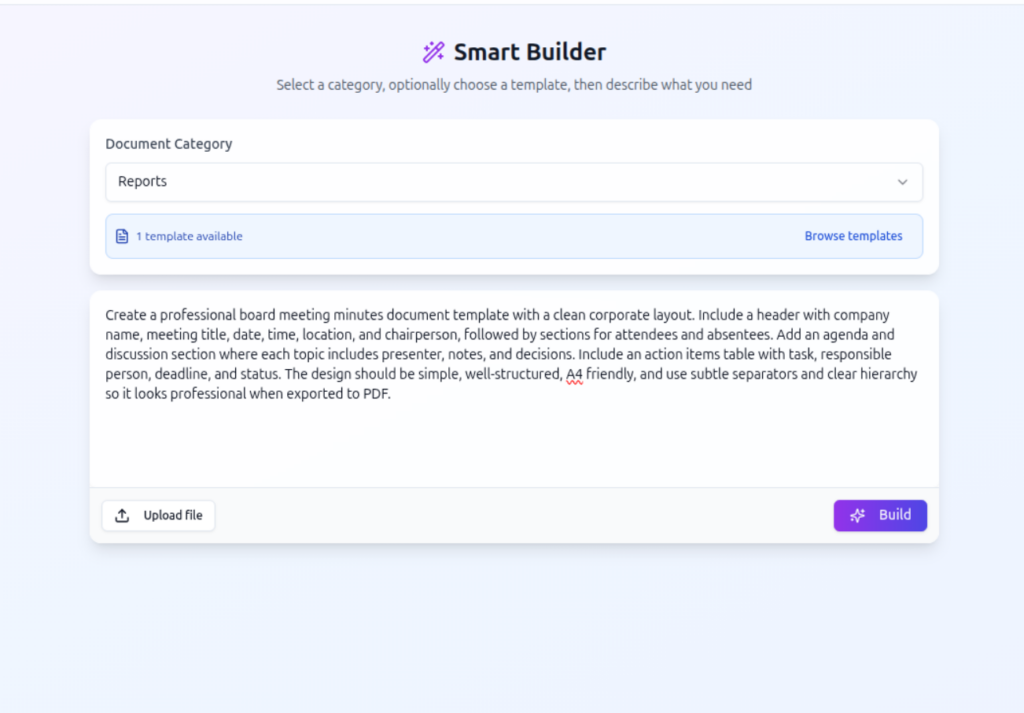
“Create a professional board meeting minutes document template with a clean corporate layout. Include a header with company name, meeting title, date, time, location, and chairperson, followed by sections for attendees and absentees. Add an agenda and discussion section where each topic includes presenter, notes, and decisions. Include an action items table with task, responsible person, deadline, and status. The design should be simple, well-structured, A4 friendly, and use subtle separators and clear hierarchy so it looks professional when exported to PDF.”
This single prompt contains everything the system needs to generate the template.
Step 1 — Writing the Prompt
In the Smart Builder interface, the user first selects a document category and then describes the document they want.
The description doesn’t need to be technical. It just needs to explain:
what sections the document has
what information each section contains
the overall style or layout
For example:
professional
minimal
A4 friendly
clear hierarchy
corporate style
These cues help the AI understand how to design the template.
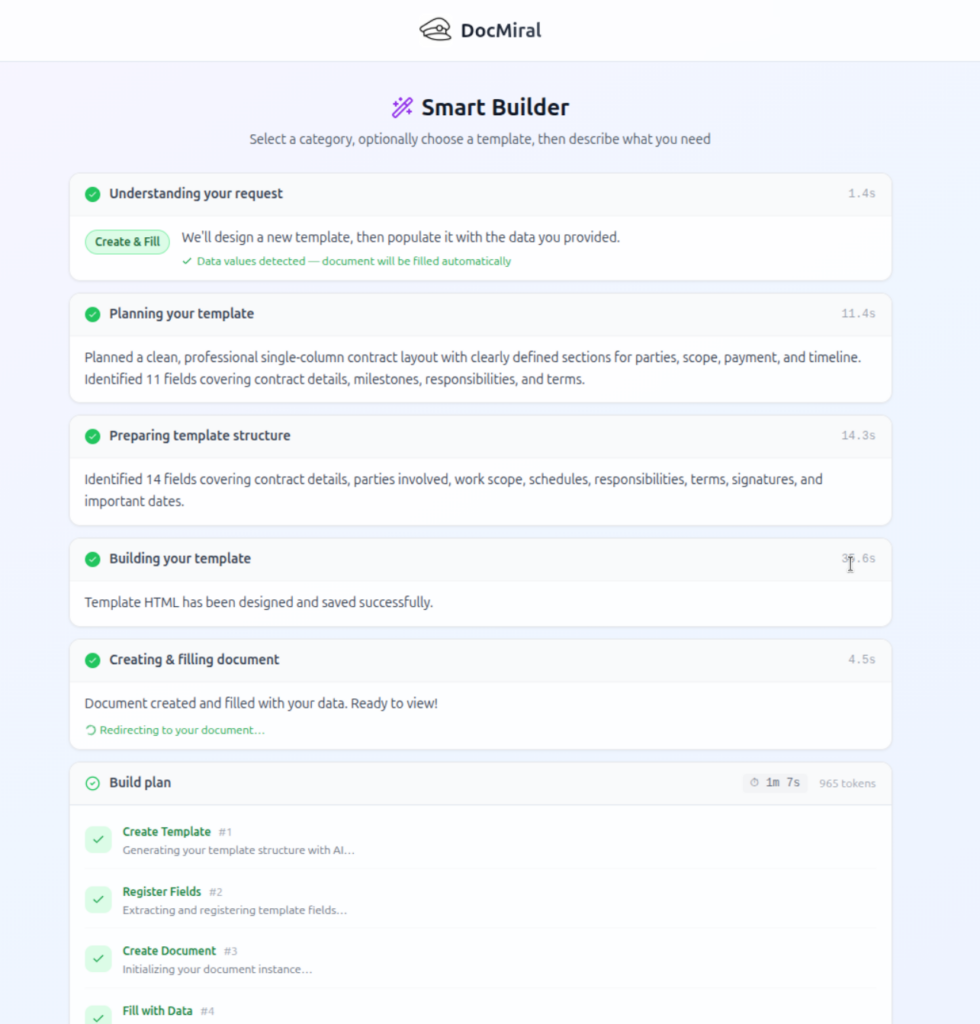
Step 2 — Understanding the Request
Once the prompt is submitted, DocMiral first determines what the user wants to do.
Is the user:
creating a template
filling a template
customizing an existing template
doing both creation and filling?
In this case, the system detects:
Create Template
That means it will design a new template from scratch based on the description.
This is part of DocMiral’s AI pipeline that interprets user intent before any generation begins.
Step 3 — Planning the Template Structure
After understanding the request, the system analyzes the prompt and extracts the document structure.
For our meeting minutes example, the AI identifies fields such as:
company name
meeting title
date and time
meeting location
chairperson
attendees
absentees
agenda items
discussion notes
action items
The system also decides what kind of structure each field should use.
For example:
Section
Data Structure
Attendees
List
Agenda topics
List
Discussion notes
List
Action items
Table
This step transforms a natural language description into a structured template schema.
Step 4 — Generating the Template Fields
Next, the system generates the variables that will appear in the template.
For example:
header fields
lists of agenda topics
tables for action items
metadata fields for meeting details
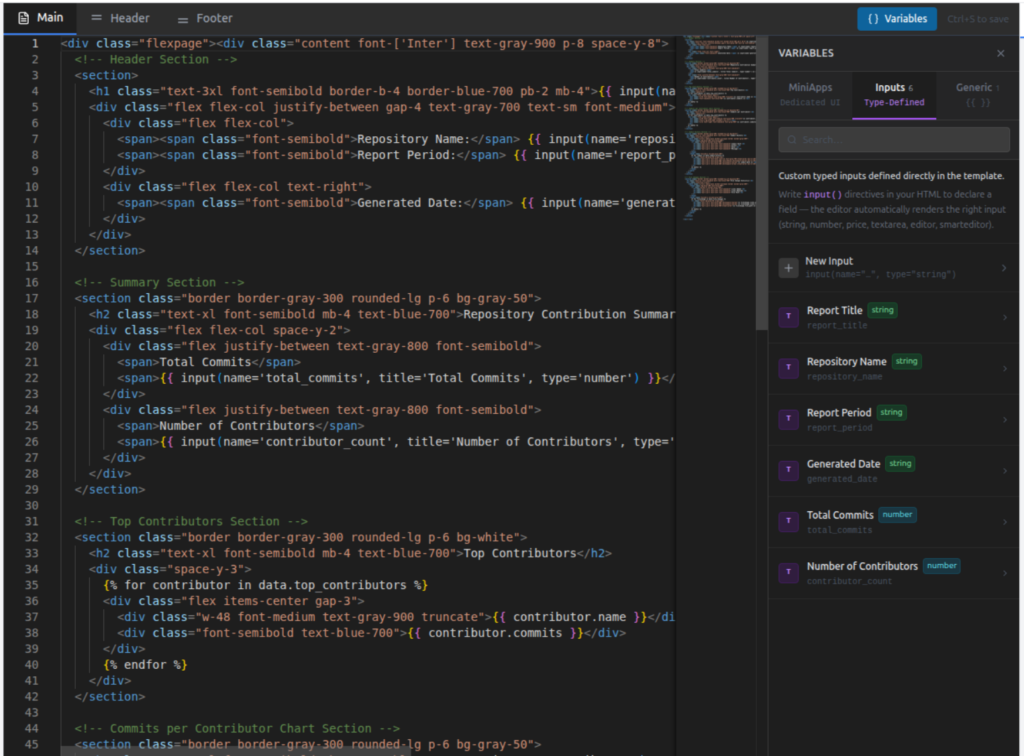
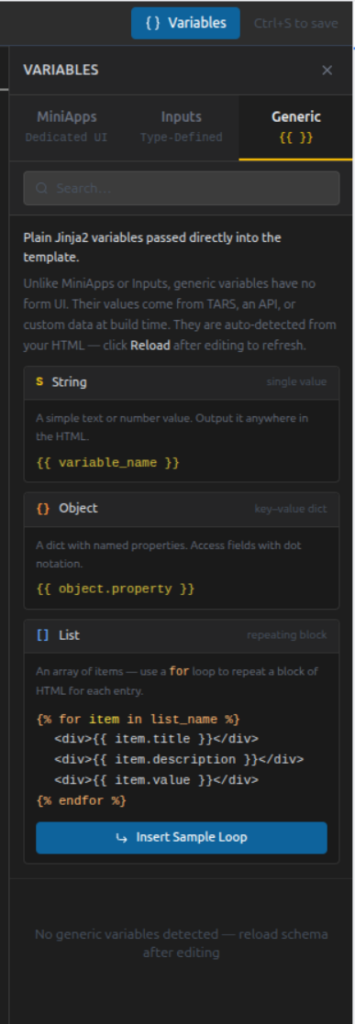
DocMiral templates support multiple variable types including:
structured MiniApp data
typed input fields
flexible Jinja2 variables
These variables allow documents to adapt to different data while keeping the layout consistent.
The guide explains how the system turns prompts into templates and how to use the builder effectively.
Conclusion
AI is changing how documents are created.
Instead of spending hours designing templates and defining fields manually, you can now describe what you want and let the system generate the structure for you.
DocMiral’s Smart Builder bridges the gap between natural language and document automation — allowing anyone to turn an idea into a working document template.
And as templates become easier to create, document workflows become easier to automate.
Creating powerful templates in DocMiral is not just about design. The real magic happens when your template becomes dynamic — able to accept data, adapt to users, and generate documents automatically.
To make this possible, DocMiral templates support three types of variables. Each serves a different purpose and gives you a different level of control.
In this guide, you will learn when and how to use:
MiniApp Fields
Type Defined Fields
Generic Fields
You do not need to understand backend data structures or schemas. Everything here focuses on what matters to template creators: writing templates effectively.
The Big Picture
Think of template variables as three levels of intelligence:
Variable Type
Best For
UI Support
Complexity
MiniApp Fields
Structured sections
Dedicated UI
Advanced
Type Defined Fields
Single controlled inputs
Built-in field UI
Medium
Generic Fields
Flexible API data
No UI required
Simple
Choose the one that matches how structured your data needs to be.
1. MiniApp Fields (Structured Sections)
MiniApps are the most powerful type of variable.
They connect your template to a dedicated editing interface designed for a specific document section.
Instead of manually defining many fields, you reference a ready-made data editor.
When to Use MiniApps
Use MiniApps when:
A section has multiple related fields
Users need a guided UI
Data may repeat (lists)
The structure is reusable across templates
Typical examples:
Resume personal details
Work experiences
Education history
Invoice items
Inspection reports
Accessing MiniApp Data
MiniApp fields use the mini() directive.
Object Example
{{ mini(name='resumes/personal', key='name') }}
This pulls a single value from the Resume Personal MiniApp.
Example output:
John Doe
List Example
MiniApps can also return lists.
{% for item in mini(
    name="resumes/experiences",
    items=["title", "company", "date_start", "date_end"]
) %}